Loading lesson…
Privacy, secrets, and responsible use
20 min read
Everything you paste into an AI tool goes somewhere. It travels to a service, may be stored in a chat history or log, and may be visible to people who manage that system. This module shows you how to get the help you need while sharing as little private information as possible, and how to keep passwords and access codes out of prompts entirely. It applies every time you're tempted to paste a real email, record, or file into a chat.
What you will be able to do
- Identify personal or sensitive details in text before you paste it (Minimize private data exposure).
- Replace names, numbers, and private details with placeholders and still get a useful result (Minimize private data exposure).
- Spot secrets such as passwords, access codes, and access tokens in a document (Keep secrets out of prompts and logs).
- Remove secrets before prompting instead of asking the tool to keep them private (Keep secrets out of prompts and logs).
- Know what to do if a secret has already been pasted (Keep secrets out of prompts and logs).
The idea
Think of a prompt as a message that leaves your desk. Depending on the tool and your organization's settings, it may be stored in chat history, kept in service logs, reviewed for quality, or shared with a workspace. You may not control all of that. So the safest data is data you never sent.
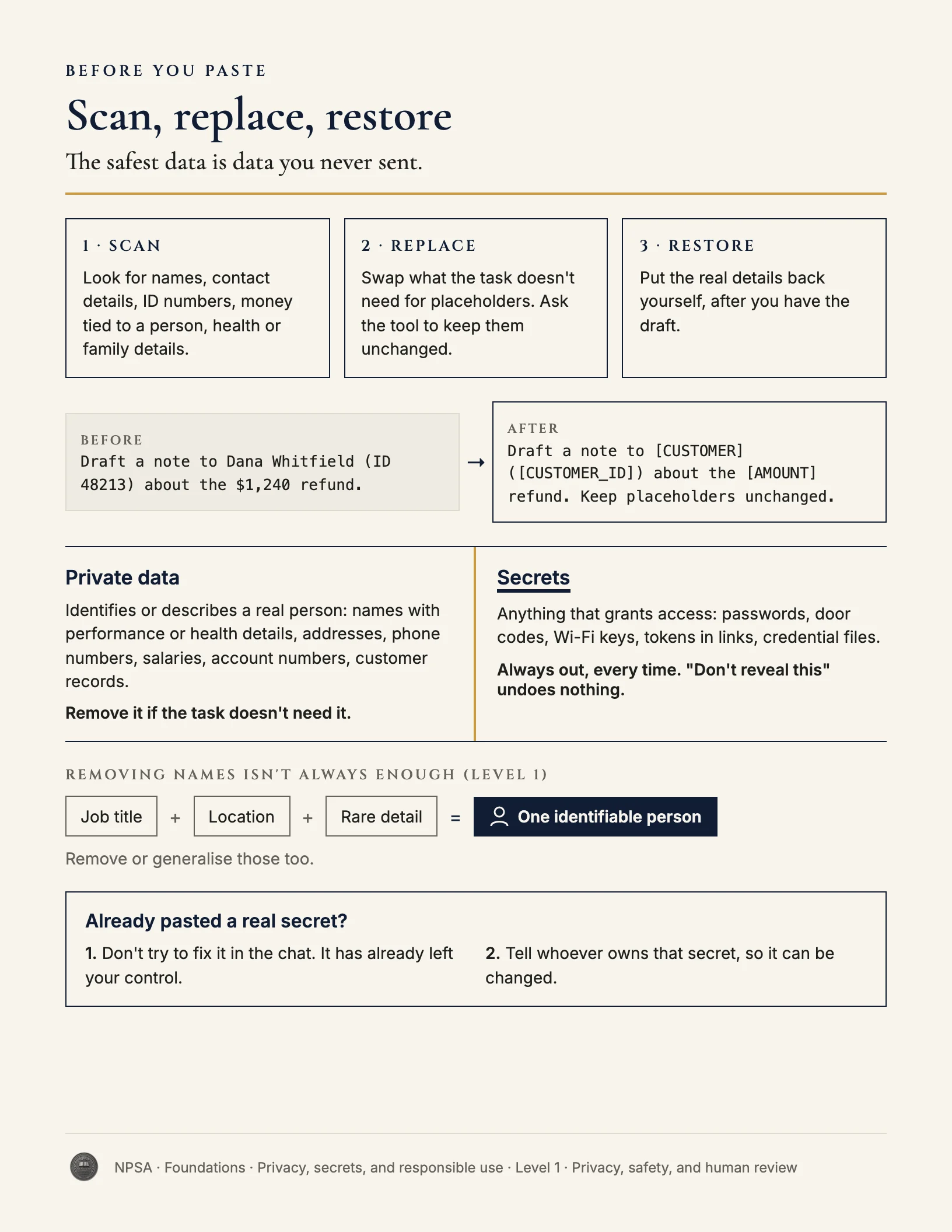
Private data is anything that identifies or describes a real person in a way they'd expect to be protected: full names paired with performance or health details, home addresses, phone numbers, salaries, account numbers, customer records. Most writing tasks don't need any of it. A tool can improve the tone of a feedback note without knowing who the employee is. It can format a customer complaint without the customer's address.
The habit is simple:
- Before pasting, scan. Look for names, contact details, ID numbers, money figures tied to a person, health or family information.
- Replace what the task doesn't need. Use placeholders like
[EMPLOYEE],[CUSTOMER_ID],[AMOUNT]. Ask the tool to keep them unchanged. - Put the real details back yourself after you have the draft.
Secrets are a sharper case. A secret is anything that grants access: a password, a door code, a Wi-Fi key, an access token in a link, a file of credentials. Once a secret is in a prompt, it has already left your control, even if the answer never repeats it. Typing "don't reveal this password" doesn't undo the exposure. It just tells you the password was sent.
So secrets come out before you prompt, every time. If a document contains one, swap it for a placeholder like [DOOR_CODE] or [API_KEY]. If you realize you've already pasted a real secret, don't try to fix it in the chat. Tell whoever manages that credential, follow your organization's process, and get the code or key changed.
Responsible use also means using the tool your organization allows for the kind of data involved. A personal account on a free tool is a different place than a company-managed workspace. When in doubt, ask your manager or IT team before you paste, not after.
Worked example
Keisha Grant is an HR generalist. She wants help rewording a note to a manager about an employee's return-to-work plan. Her original draft includes the employee's full name, employee ID, a medical reason for leave, and a link to the HR system that contains a sign-in token.
Before:
Rewrite this so it sounds more professional. Keep everything private
and don't share the link.

"Hi Tom, Jordan Avery (ID 20-4471) returns from leave on June 2 after
knee surgery. She'll need a desk near the elevator for 3 weeks. Her
file is here: https://hr.example.com/doc?id=8812&token=k29fXq7"
The tool now has a full name, an ID, a health detail, and a working access link. Asking it to "keep everything private" doesn't change that any of it was sent.
After:
Rewrite this note in a professional, courteous tone for a manager.
Keep every placeholder in square brackets exactly as written. Do not
add medical details or invent any dates.

"Hi [MANAGER], [EMPLOYEE] returns from leave on [RETURN_DATE]. They'll
need a desk near the elevator for [DURATION]. Their file is linked in
the HR system."
Why this is stronger. The tool gets only what the task needs: the structure, the request for a nearby desk, and the tone. The name, ID, and health reason never leave Keisha's computer. The token link is gone, replaced by a plain reference she can add back in the HR system. She fills in the placeholders after she has the draft, and the result is just as useful.
Try it
Setup. Find a real email or note you might want help rewording, such as a customer reply, a scheduling message, or a team update. Copy it into a text editor, not into a chat tool.
Task. Highlight every name, contact detail, ID, money amount, health or personal detail, and any password, code, or link with a token in it. Replace each with a bracketed placeholder. Then paste only the edited version into a chat tool and ask for a rewrite that keeps the placeholders unchanged.
What a good result looks like. The text you pasted contains no real personal details and no secrets. The rewrite keeps every placeholder exactly as you wrote it. When you put your real details back in, the message reads correctly.
Watch for this
Screenshots and attached files carry data too. A screenshot of a spreadsheet can include columns you didn't mean to share. Crop or redact before you attach.
Recap
- A prompt leaves your control the moment you send it.
- Share only what the task needs. Use placeholders for the rest.
- Remove passwords, codes, and tokens before prompting. Asking the tool to keep them private is too late.
- If a secret was already sent, report it and get it changed.
- Use the tool your organization allows for the data involved.